Local data
Your invoices stay on the desktop workstation. No Ifriqa cloud storage is required to work.

User guide
This page explains how to configure the application, create an invoice, sign it with TunTrust, submit it to TTN and track its status.
Quick access
Each section has a stable anchor for opening the right passage directly from TTN e-Fatoora.
How it works
The software helps users work cleanly without turning them into XML or TTN technicians.
Your invoices stay on the desktop workstation. No Ifriqa cloud storage is required to work.
You can prepare invoices without internet. TTN submission resumes when a connection is available.
Prepare several invoices then sign them in a single session to avoid repeated PIN prompts.
Prerequisites
These elements are external to the software. They must be obtained from the official bodies.
You must have a valid tax identification number (matricule fiscal).
Used to sign invoices electronically. The software uses it but does not issue it.
Gives access to the official electronic invoicing circuit.
First setup
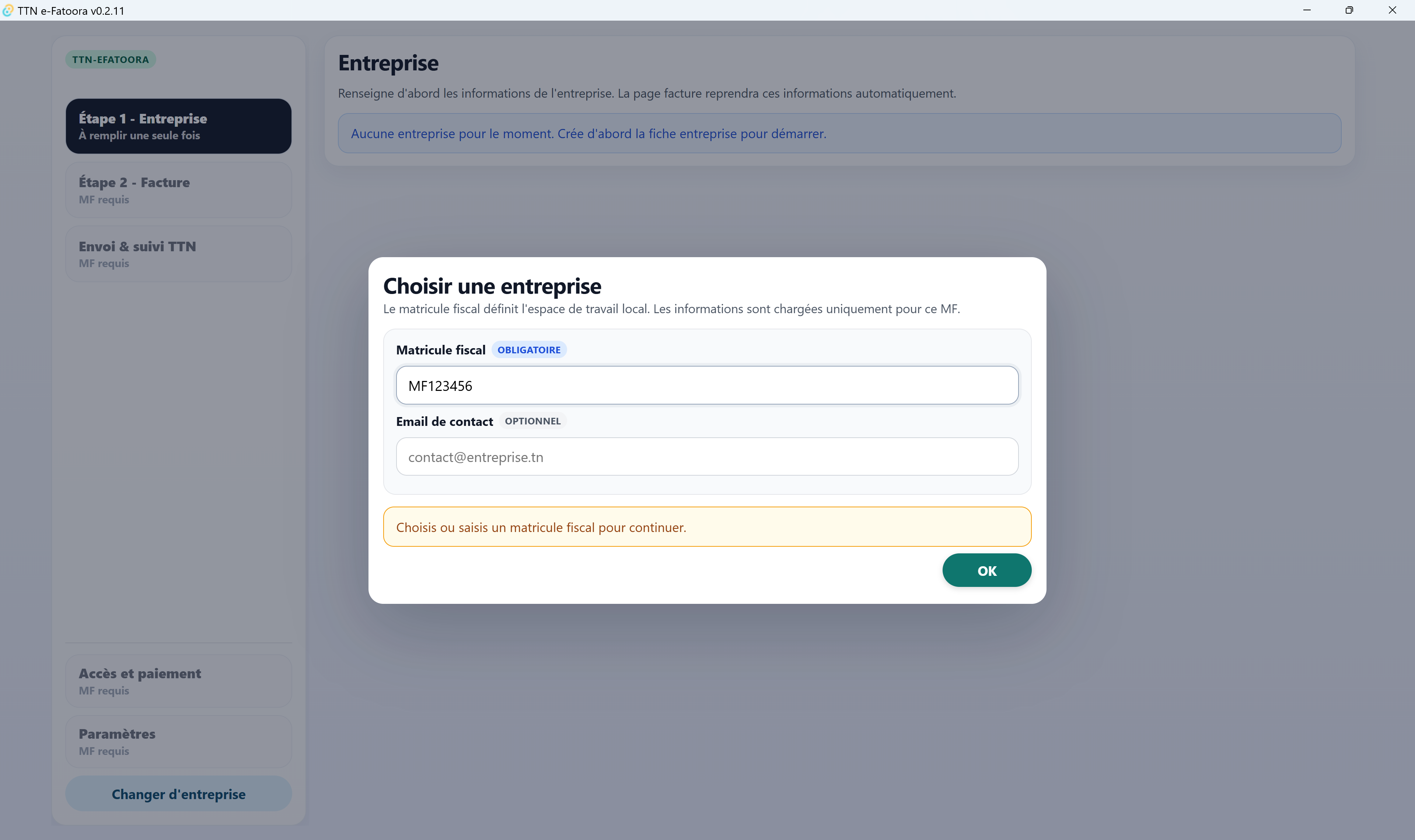
On first launch, the application asks for the working company in order to separate files and avoid mixing invoices.
The application creates or selects the active company. If RNE retrieval is available, some information may be pre-filled.
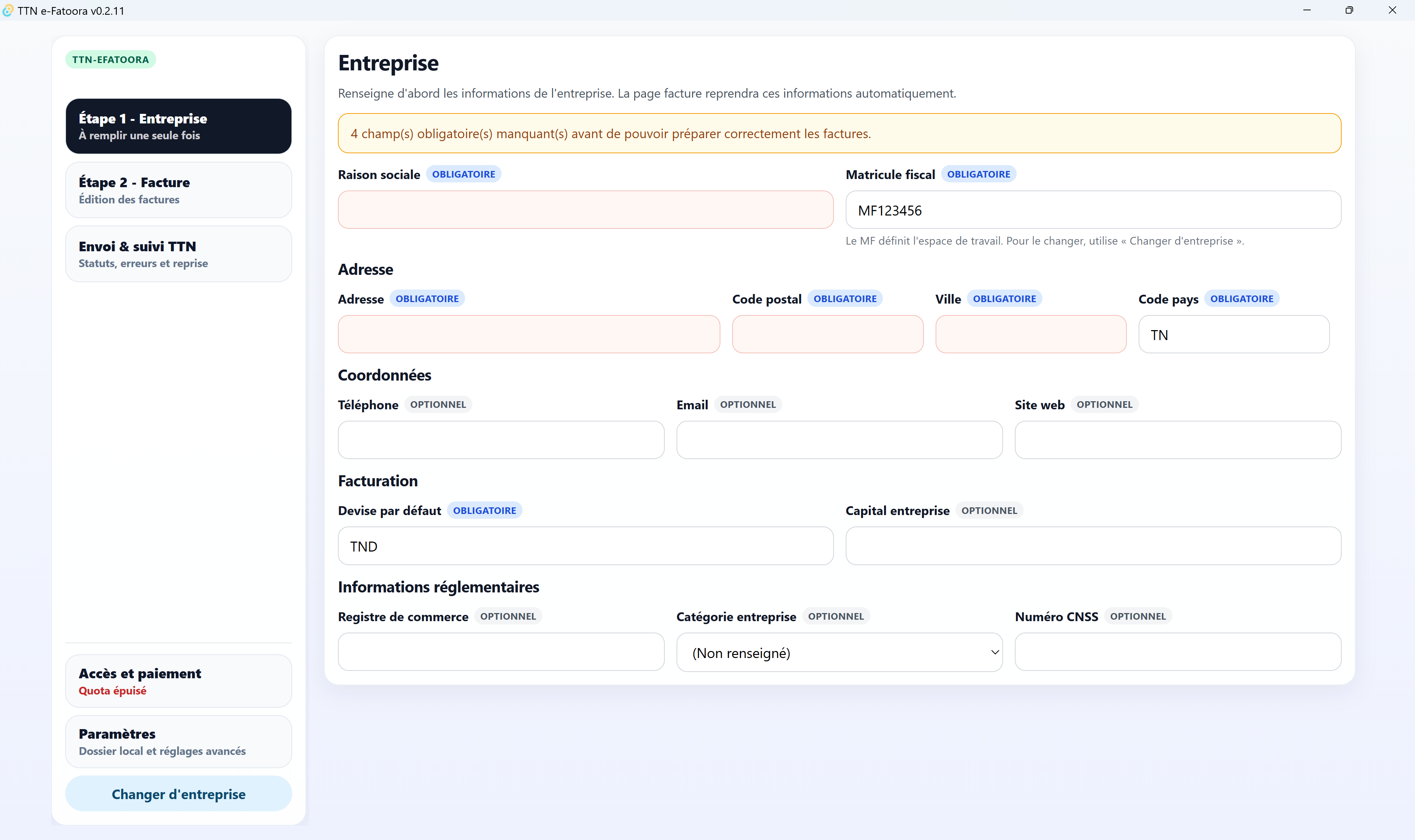
The validated information will be carried over to subsequent invoices.
Create an invoice
The form is divided to make entry and review easier.
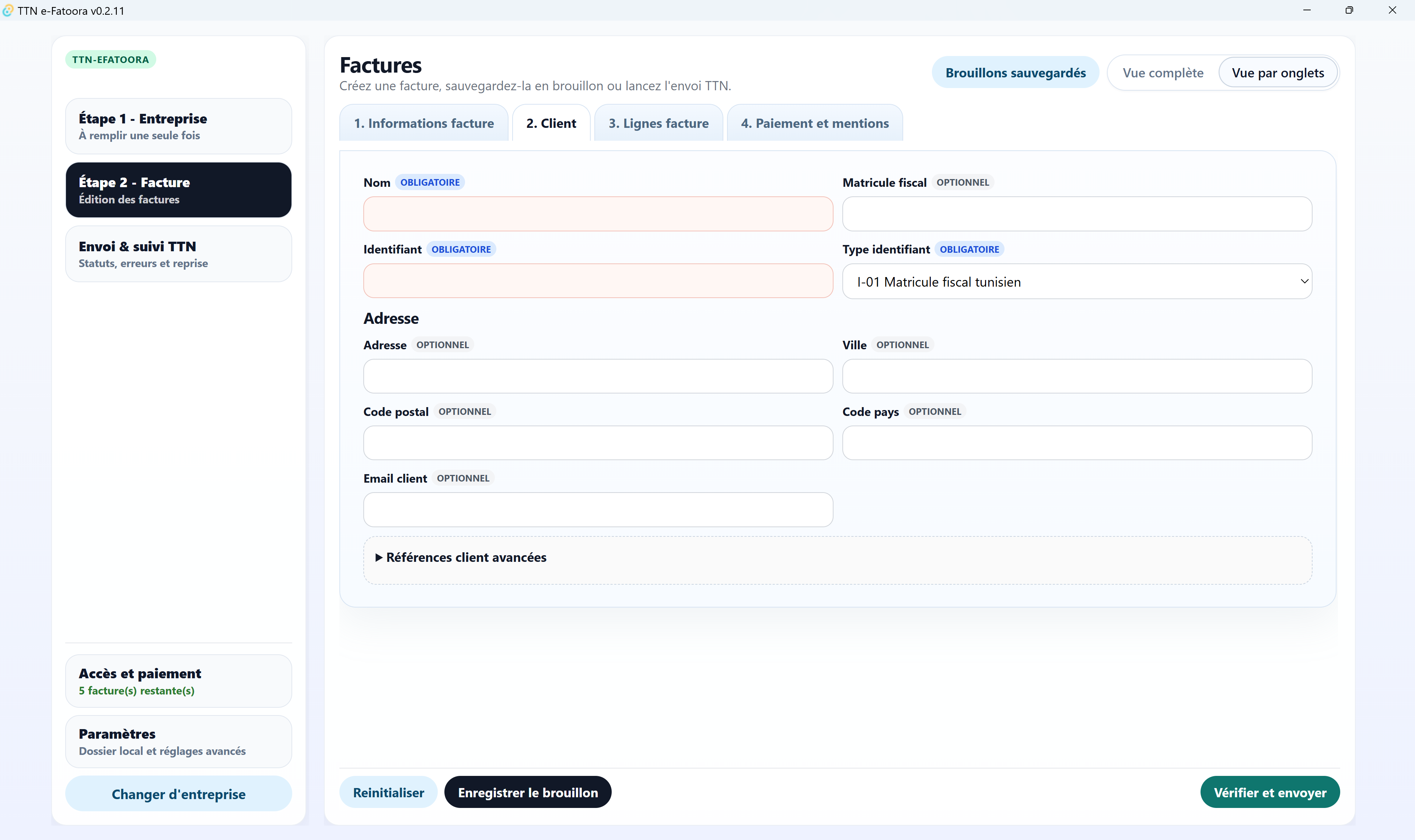
Enter customer information and tax ID if required.
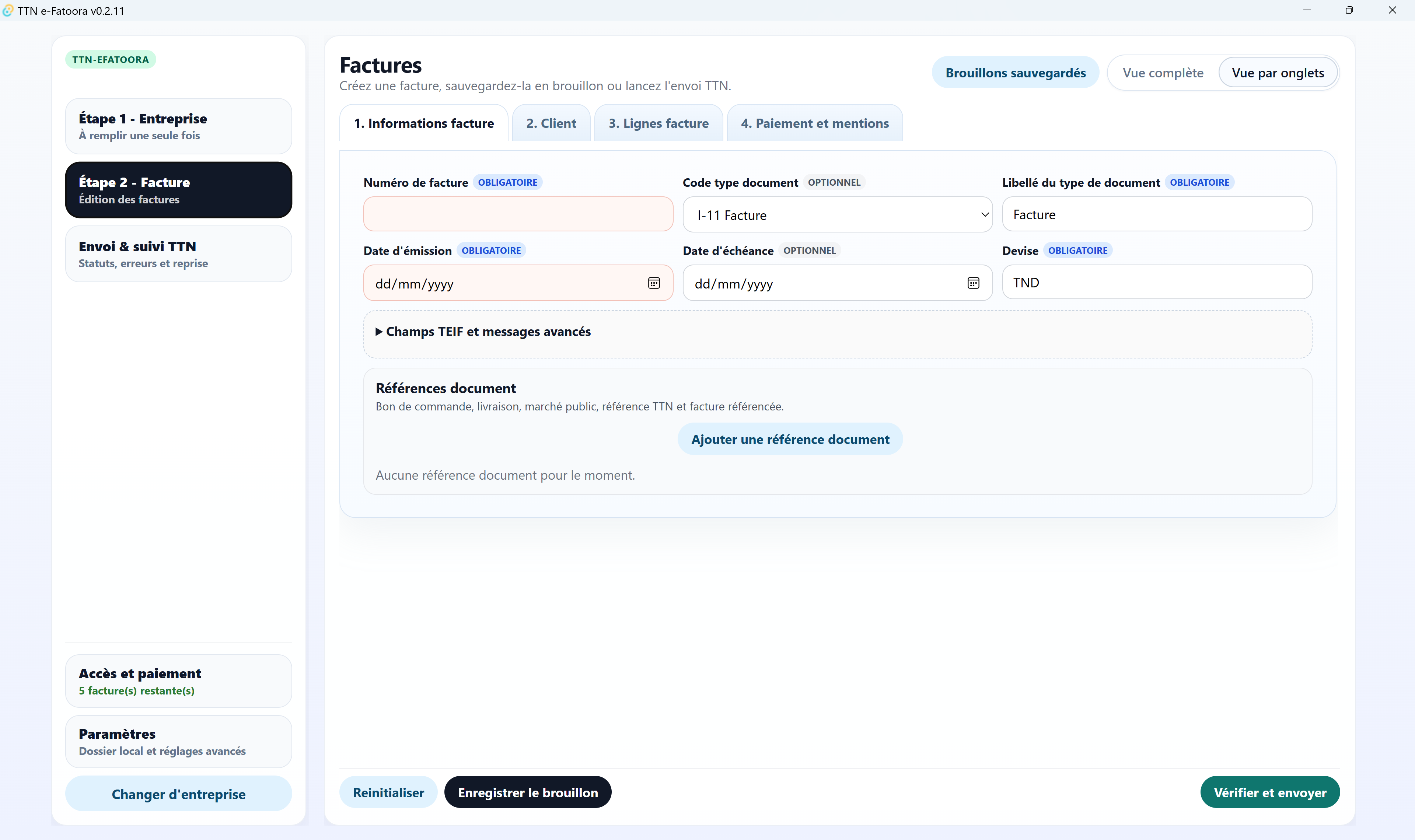
Fill in the date, references and main information.
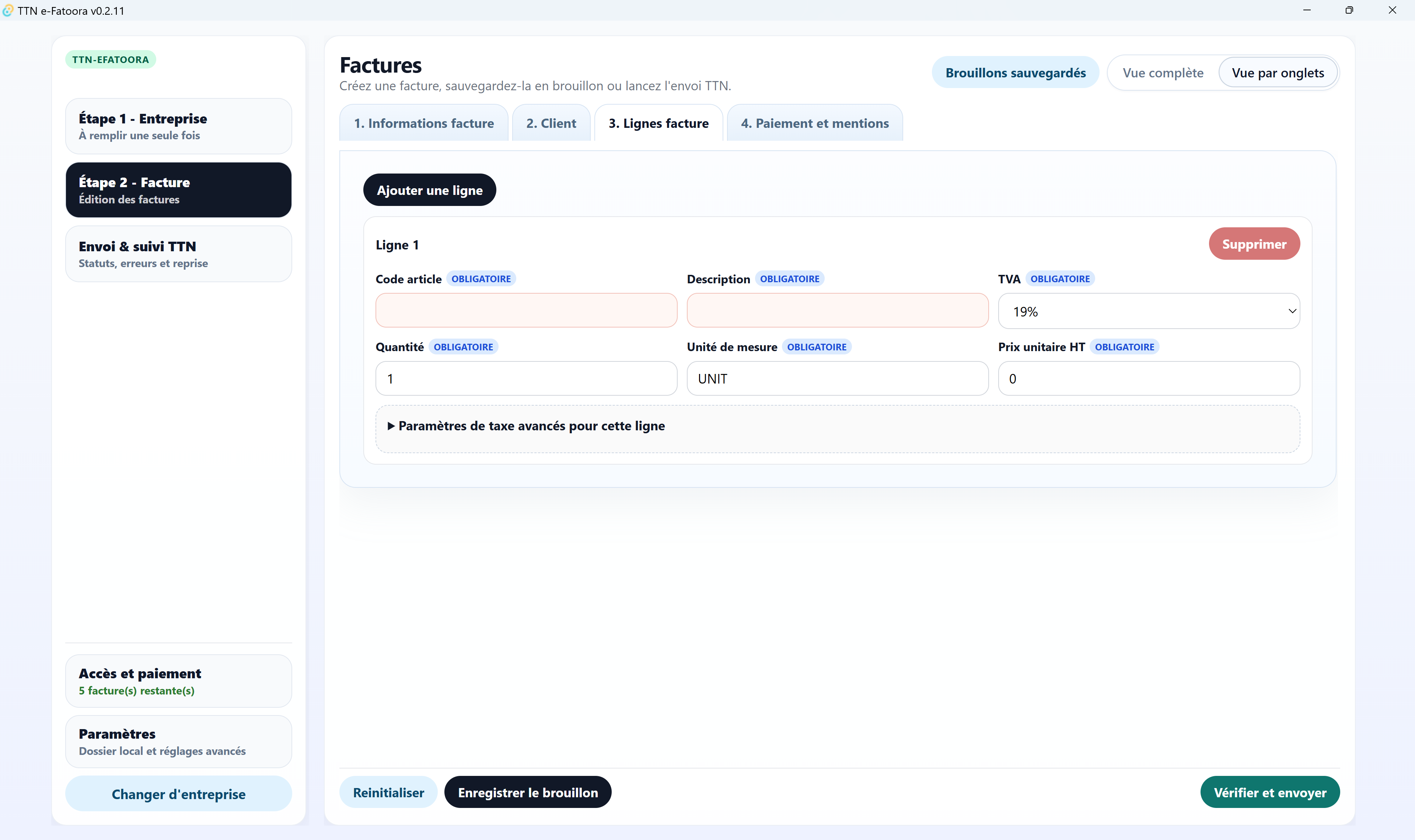
Add products or services, quantities, prices, discounts and taxes.
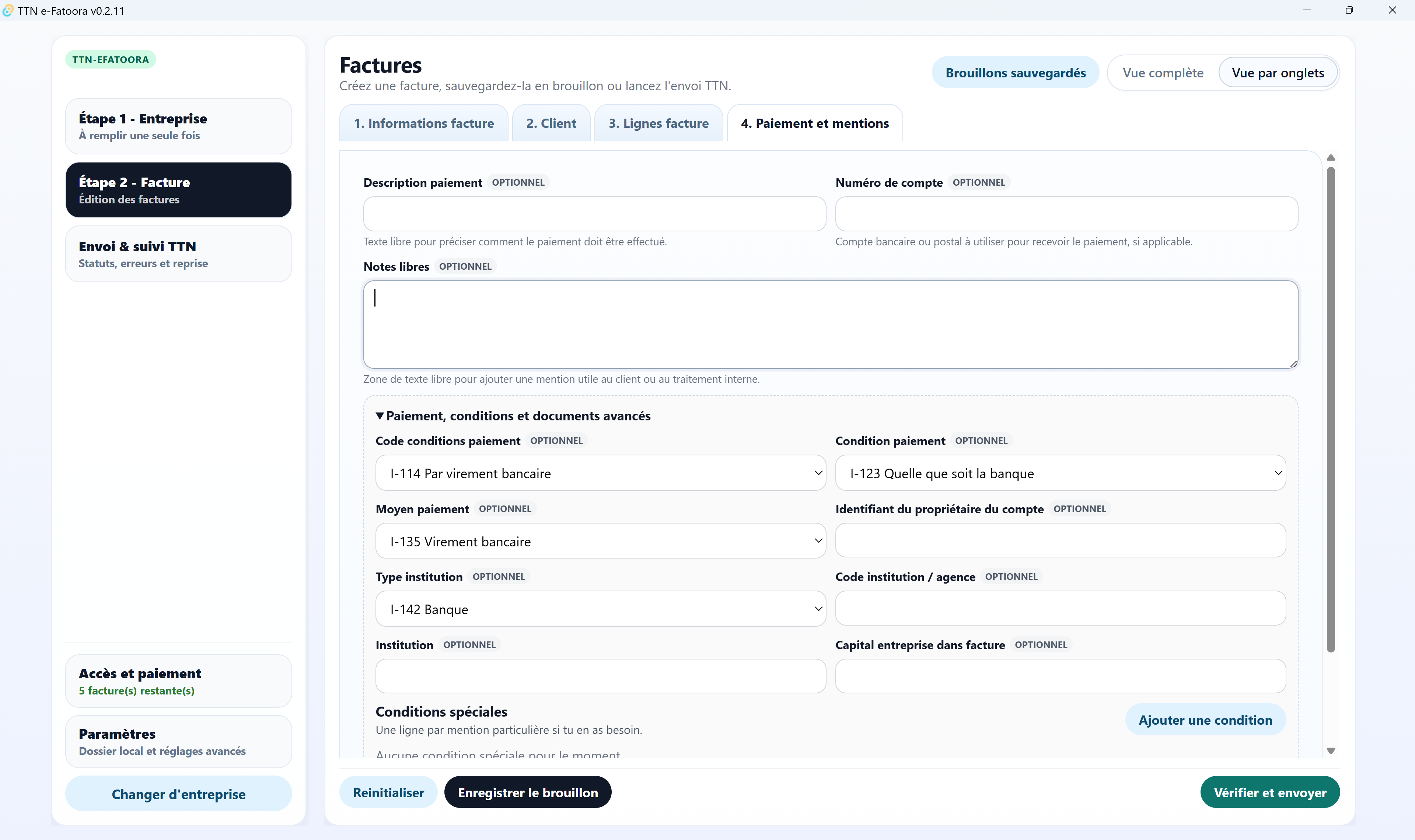
Add only the additional information relevant to the file.
Review
The pre-submission review is designed to catch simple errors before signing and submitting.
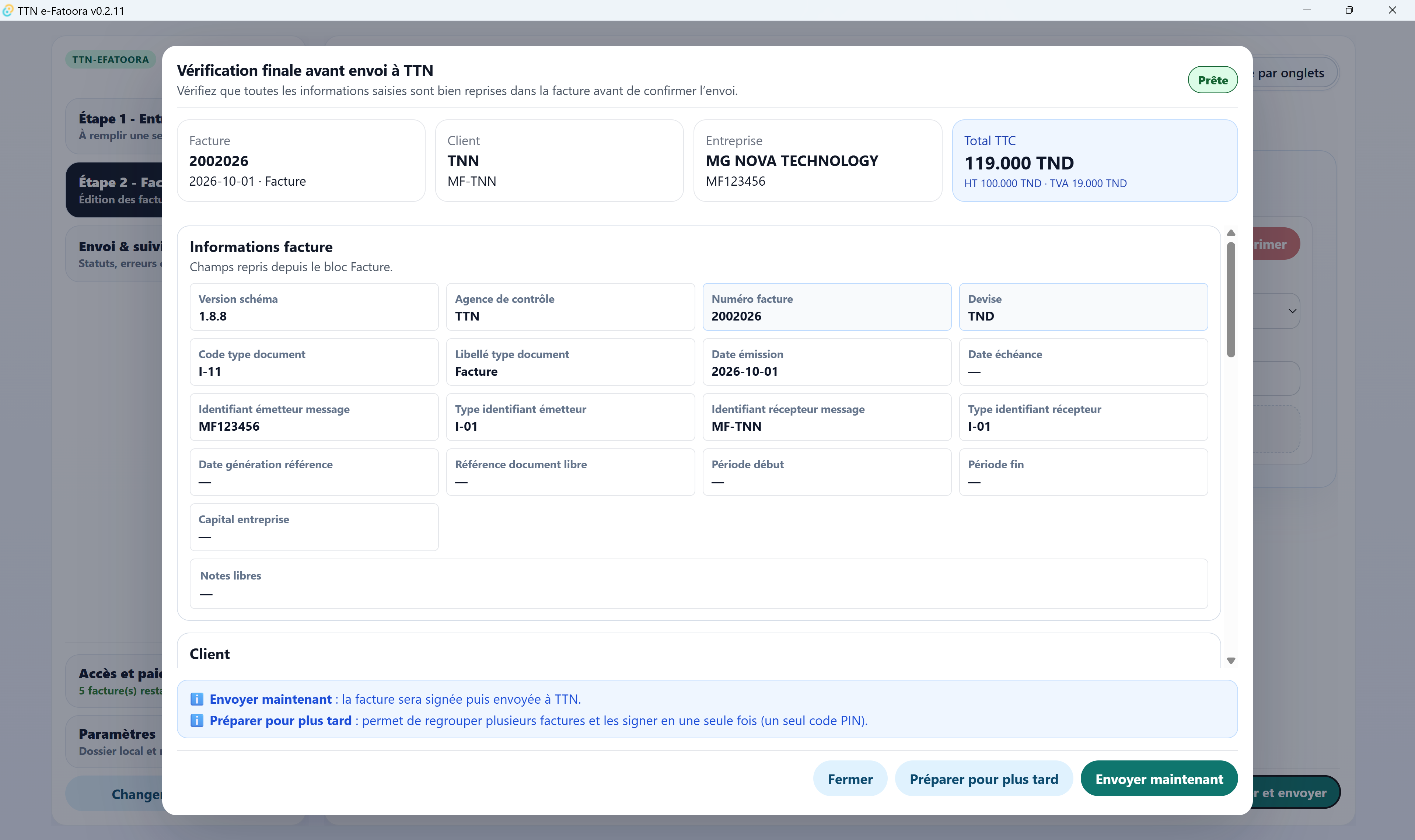
Signature
The software prepares the invoice, uses the certificate available on the workstation, then triggers the signature.
Prepare one or more invoices.
Plug in the key or verify access to the certificate.
Enter the PIN when the system requests it.
Prepare several invoices then sign them in a single session. This avoids re-entering the PIN for each invoice.
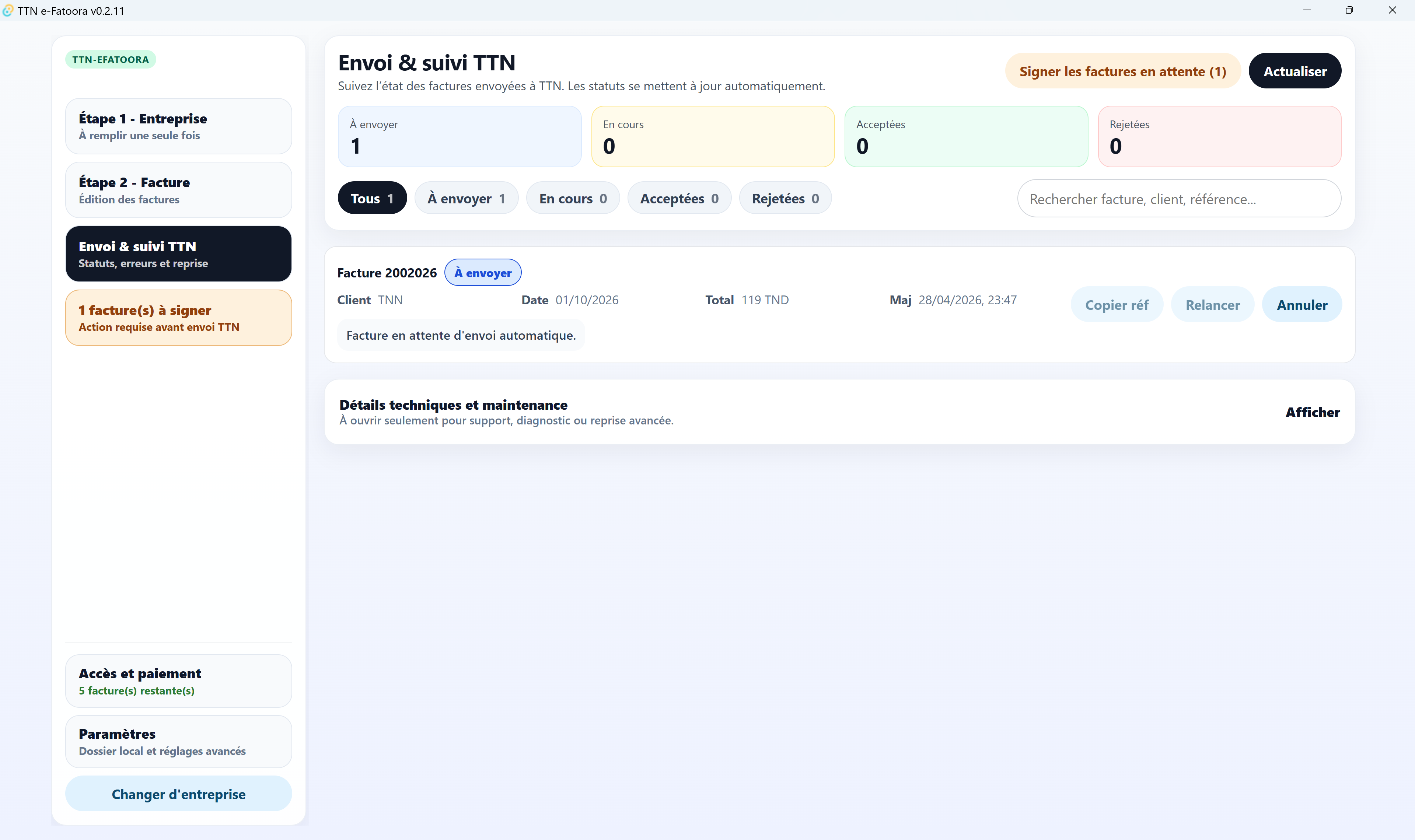
TTN submission & tracking
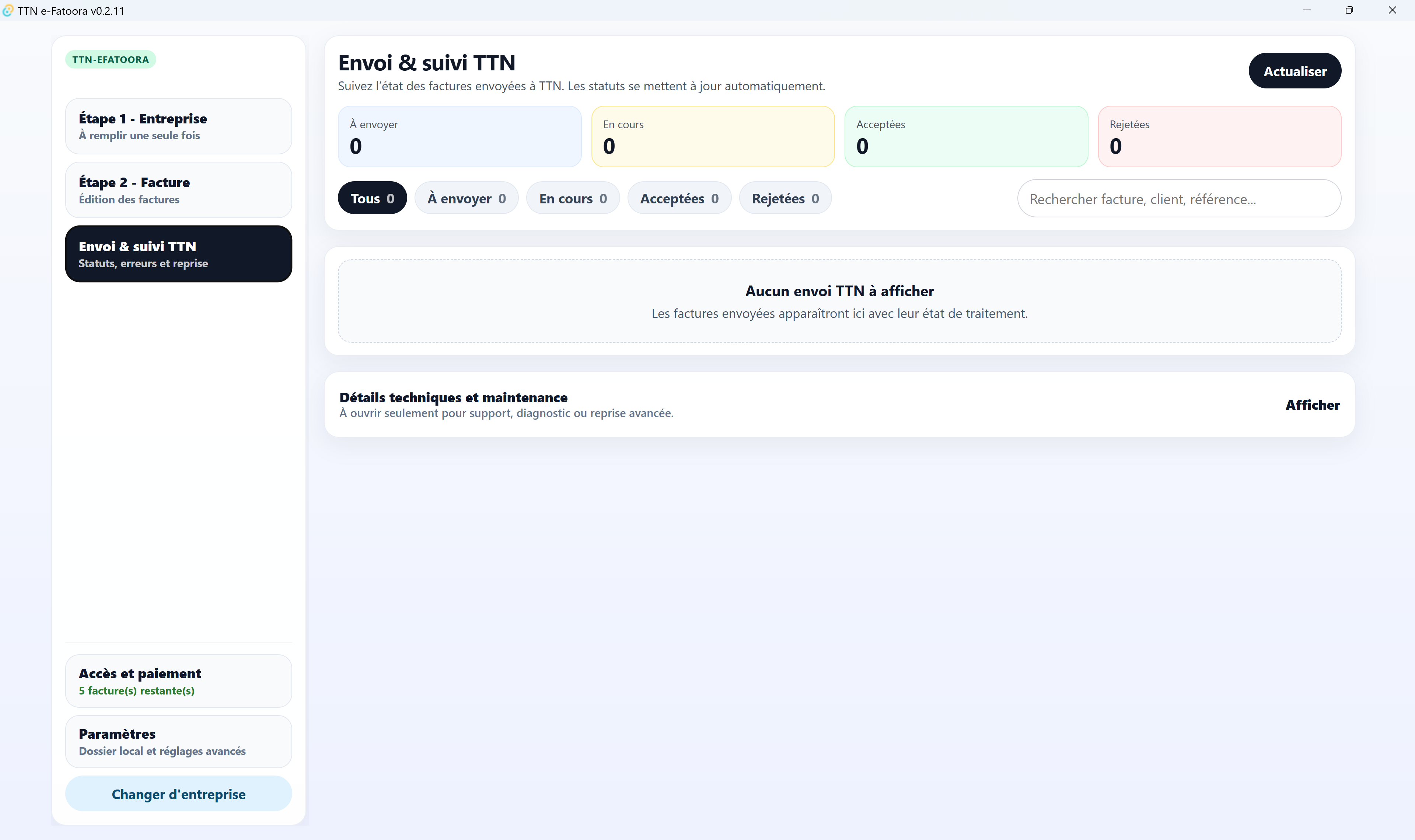
Once the invoice is signed, the application tracks its submission and processing status.
You can prepare invoices without a connection. They remain pending and submission resumes when the required conditions are available.
Quota
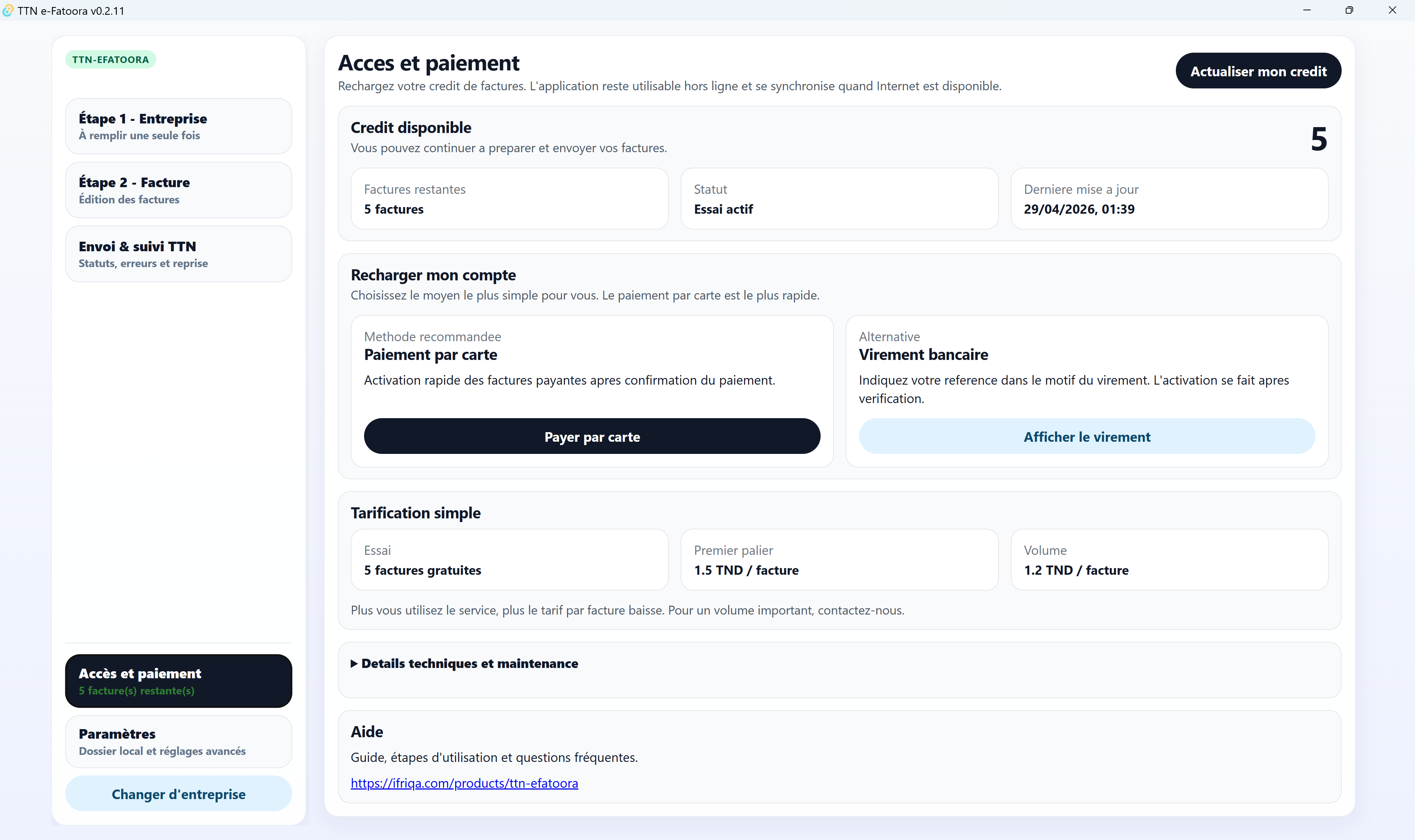
The quota tracks software usage and processed invoices.
Troubleshooting
Start with these simple checks before contacting support.
Check the key, the installed certificate and restart the application.
Check the keyboard, the input language and avoid unnecessary repeated attempts.
Check the connection, TTN access and retry from the tracking screen.
Read the rejection message, check the fiscal data, customer and amounts.
FAQ
Short answers to clarify the exact role of the software.
No. The software helps with preparation, signing and tracking from your workstation. Registration and official access remain managed by TTN / El Fatoora.
No. The certificate must be obtained from TunTrust or through their official channels.
No. Invoices are stored locally on your computer. Data is only transmitted when you submit an invoice to TTN.
Yes for preparing invoices. Actions requiring TTN or the licence resume when a connection is available.
This allows signing multiple invoices in a single session and avoids entering the PIN repeatedly.
Beta access
Request early access or be notified when TTN e-Fatoora becomes available.
Request beta access